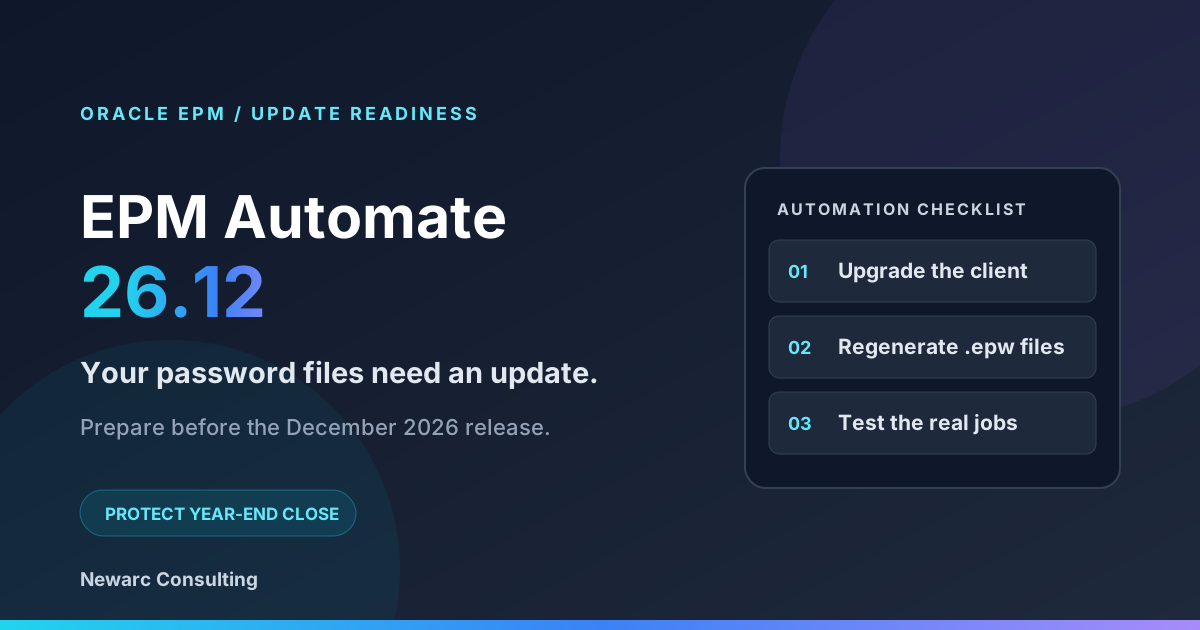
Your scheduled EPM Automate jobs need attention before the December 2026 update. A password file created years ago can keep working through the autumn and then fail when your environment moves to 26.12. For data loads, exports and backups that support year-end close, that is a change to prepare for now.
This practitioner's guide explains the password-file transition, how to find affected jobs and the four-step fix. Oracle has announced the change in its Important Actions and Considerations; check your environment's update schedule when planning the work.
What changes in EPM Automate in 26.12?
From 26.12, Oracle Cloud EPM accepts only the new encrypted password (.epw) format introduced with EPM Automate 26.09. Clients from 26.08 or earlier will no longer work against those environments. Upgrade the client to 26.09 or later and regenerate the password files after the target environments have reached 26.09.
The encrypt syntax stays the same. Keeping the original file path and name usually means the password-format migration can be completed without changing the scripts that read it. Other login and command changes still need their own review.
The timeline: what happens when?
Use the transition window to prepare
New files use the updated format; environments accept both formats.
Both formats remain accepted. Inventory, replace and test legacy files.
New format only. EPM Automate clients must be 26.09 or later.
November is the last update that accepts legacy files. Complete remediation before your environment receives 26.12, including test environments that receive monthly updates ahead of production. A deferred production update can also mean test and production temporarily accept different file formats.
Am I affected? Three checks
If you run EPM Automate, start with the machines, credentials and schedules behind those jobs. A file's modification date can help prioritize an inventory, but it does not prove which client generated it.
1. What client version is installed?
After a successful login, EPM Automate identifies the installed version and reports when a newer version is available. See Oracle's upgrade command documentation.
epmautomate login USERNAME PASSWORD_FILE URL
Check every machine that executes automation. On Windows, also inspect the installed application and the executable path your scheduler uses. Upgrading a copy on an administrator's laptop does not update the client used by a batch server.
2. Where are your .epw files?
Search beyond the script folder. Credentials may live in hidden folders, shared drives or directories created during implementation.
Windows PowerShell:
Get-ChildItem -Path C:\ -Filter *.epw -Recurse -Force -ErrorAction SilentlyContinue |
    Select-Object FullName, LastWriteTime
-Force includes hidden folders; inaccessible locations can still be skipped. Repeat for every drive or share your jobs use. A full-drive scan can take time, so begin with known automation locations if needed.
Linux / macOS:
find / -name "*.epw" -type f 2>/dev/null -exec ls -l {} \;
Oracle's encrypt documentation lists the default Windows location as ProgramData\Oracle\EPM Automate. On Linux, the default is the directory from which EPM Automate is invoked. Record the absolute path each job actually reads.
3. What calls those files?
Search scripts and scheduler definitions for .epw and epmautomate login. Include Windows Task Scheduler, cron, Jenkins, Control-M, AutoSys and wrapper scripts.
Build a small inventory with the host, client path and version, password-file path, consuming jobs, target environments, schedule and owner. Include jobs that run only at month end or quarter end and any EPM Integration Agent sharing the credentials.
The fix: four steps before the December update
Confirm that every environment a replacement file will access is on 26.09 or later. Then schedule the work around your batch window. The time required depends on the number of hosts and files, access to credentials and the duration of your real jobs.
From an old credential to a validated batch
Upgrade the client
Install 26.09 or later on each automation host. Confirm the scheduler uses that installation.
Regenerate the files
Back up and replace each .epw file. Update any consuming Integration Agent first.
Test each environment
Run login, listfiles and logout in test, then validate the appropriate production credentials.
Validate the real job
Use the normal scheduler account. Check outputs, completion status and alerts end to end.
Step 1 — Upgrade the client
epmautomate upgrade
On Windows, run from an elevated command prompt with administrator access and write permission to the installation directory. The command upgrades the existing installation; sign in again afterward. Confirm that the scheduler invokes the upgraded client. Oracle documents these requirements in the upgrade guide.
For Linux and UNIX hosts, also review JAVA_HOME. Oracle's 26.10 Java guidance adds Java 21 support, retains Java 17 temporarily and announces its deprecation in 27.01. Plan that runtime upgrade alongside the credential work.
Step 2 — Regenerate each password file in the right order
Update the EPM Integration Agent before its password file
.epw fileUse the file generated by EPM Automate 26.08 or earlier.For password-based login, the command is:
epmautomate encrypt PASSWORD KEY PASSWORD_FILE
Replace the placeholders with the current account password, your encryption key and the full .epw path. Coordinate access to the underlying password with its owner before the maintenance window.
Back up the existing file securely, generate the replacement and retain the original path and filename. Preserve the permissions required by the scheduler's execution account. If you generate a temporary file, switch it into place while consuming jobs are paused.
For OAuth or authenticated proxies, preserve the relevant ClientID and ProxyServerPassword options in the documented syntax. A simple password-only example is not a replacement for those configurations.
An old file can be a temporary fallback while an environment still accepts its format. It cannot restore access to a 26.12 environment. Remove the backup through your normal credential-retention process once validation is complete.
Step 3 — Test against each target environment
epmautomate login USERNAME PASSWORD_FILE TEST_URL
epmautomate listfiles
epmautomate logout
Use your real username, file path and environment URL. Start in test, then repeat against production using the appropriate credentials and file. Inspect the exit status and output of each command. A successful test login does not validate a different production account.
Step 4 — Run the real scheduled job
A successful login is only the first check. Run the actual job through its scheduler under the normal execution account during an agreed window, especially if it changes data.
Verify the full process: authentication, data movement, calculations or reports, output files and completion status. Check that alerting also works. Record the result and the job owner so the change is traceable during close.
The parts teams get wrong
Service accounts whose password nobody knows. A file cannot be regenerated from an unknown underlying password. Recover the credential through your approved process or coordinate a reset, including all other consumers of that account. Credential access can become the longest part of the work.
Jobs that only run at quarter end. A job last run in September may not expose a problem until the December close. Include infrequent jobs in the inventory and validate them before their next business-critical run.
One file shared by many jobs. Map every consumer before replacing it. Shared files need a coordinated maintenance window and tests for all affected scripts, accounts and environments.
A scheduler using a different installation. Check its configured executable, working directory and execution account. Your interactive shell can use an upgraded client while a scheduled task continues to call an older copy.
The EPM Integration Agent sequence. Keep the agent upgrade and credential replacement together in the runbook so the file is not replaced prematurely.
While you are in there: four related changes
Remove account-prefixed usernames before 26.11
Oracle is removing the accountName.userName login format from EPM Automate and REST APIs in November. Use the username without the cloud-account prefix. This has an earlier deadline than the password-file change; see Oracle's announcement.
Replace removed IP allowlist commands
setIPAllowList and getIPAllowList were removed in 26.05. Move the relevant configuration to Network Perimeter in the identity domain. Oracle notes that older clients ignore the removed calls, so a successful-looking script does not prove the allowlist was updated. See the removal and migration guidance.
Review EPCM POV delimiters
In Enterprise Profitability and Cost Management REST APIs and EPM Automate commands, & is no longer supported as a POV delimiter. Use a supported alternative: _, #, ~, %, ;, : or -. Update and test affected scripts against the EPCM guidance.
Review newer automation options
Oracle's October feature summary includes listUsers for user-administration automation and an enhanced Jobs Console. These are useful follow-up improvements after the required client, credential and compatibility work is complete.
FAQ: EPM Automate 26.12
Why is my EPM Automate login failing after the December 2026 update?
Check for an old-format .epw file or a client older than 26.09. Upgrade and regenerate the file, then retest. If login still fails, inspect the error for other causes such as credentials, permissions or connectivity.
How do I regenerate the EPM Automate encrypted password file?
Use EPM Automate 26.09 or later and run epmautomate encrypt PASSWORD KEY PASSWORD_FILE. Preserve required OAuth or proxy options, back up the existing file, and test the replacement before the next scheduled run.
Which EPM Automate versions work with 26.12?
Use a client from 26.09 or later. Clients bundled with 26.08 or earlier cannot access environments on 26.12.
Do I need to change my scripts?
The password-format migration does not require a new encrypt syntax or login flow. Keeping the same password-file path usually avoids script edits, but account-prefixed usernames and removed commands need separate remediation.
What about the EPM Integration Agent?
Upgrade the agent to 26.10 before replacing its legacy password file. Check every consumer of a shared file so that an older agent does not receive the replacement prematurely.
Oracle documentation and related reading
Release details checked on October 14, 2026. Recheck Oracle's readiness guidance and your own environment schedule before the maintenance window.
- 26.09 Important Actions and Considerations: password files, client compatibility, agent sequencing and usernames
- EPM Automate
upgrade: installation and permission requirements - EPM Automate
encrypt: syntax, file locations, OAuth and proxy options - 26.10 Java 21 support for EPM Automate on Linux/UNIX
- IP allowlist command removal and Network Perimeter migration
- EPCM POV delimiter changes
- 26.10 feature summary
For more Newarc guidance, read Oracle EPM September 2026 updates and Reporting in Oracle Account Reconciliation.
For report packages, doclets and management reporting, see our Oracle EPM Narrative Reporting guide.